How to stream on Kick? The process is straightforward: create a Kick account, connect OBS Studio, and go live. But Kick offers unique advantages over Twitch — including a 95/5 revenue split and more relaxed content guidelines — that make it increasingly attractive for new and established streamers alike.
This guide covers everything you need to know about streaming on Kick in 2026, from initial setup to growing your audience on this rapidly expanding platform.
Quick Start: Stream on Kick in 5 Steps
Here's the fastest way to start streaming on Kick:
- Create a Kick account at kick.com
- Download OBS Studio from obsproject.com
- Get your stream key from Kick dashboard
- Configure OBS with Kick's server URL
- Go live and start building your community
Below, we'll walk through each step in detail with pro tips for maximizing your success on Kick.
Why Stream on Kick?
Before diving into how to stream on Kick, let's understand why creators are flocking to this platform:
Kick vs Twitch: Key Differences
| Feature | Kick | Twitch |
|---|---|---|
| Revenue Split | 95/5 (creator keeps 95%) | 50/50 (or 70/30 for top partners) |
| Subscription Price | $4.99 | $4.99 |
| Creator Earnings per Sub | $4.74 | $2.50-$3.50 |
| Content Guidelines | More relaxed | Stricter |
| Gambling Content | Allowed | Restricted |
| Platform Age | Launched 2022 | Launched 2011 |
| Viewer Base | Growing rapidly | Established, larger |
The 95/5 Split Advantage
The biggest draw for creators learning how to stream on Kick is the revenue split. For every $4.99 subscription:
- Kick creator earns: $4.74
- Twitch Affiliate earns: $2.50
- Twitch Partner (70/30) earns: $3.50
That's nearly double the earnings per subscriber compared to most Twitch streamers.
What You Need to Stream on Kick
Minimum Requirements
| Component | Minimum | Recommended |
|---|---|---|
| Internet Upload | 5 Mbps | 10+ Mbps |
| CPU | Quad-core | 6+ cores |
| RAM | 8 GB | 16+ GB |
| GPU | Integrated | Dedicated (GTX 1660+) |
| Webcam | 720p | 1080p |
| Microphone | Headset mic | USB condenser |
Supported Platforms
You can stream on Kick from:
- Windows PC — Full support via OBS
- Mac — Supported via OBS
- Linux — Supported via OBS
- Mobile — Kick app (iOS/Android)
- PlayStation/Xbox — Requires capture card + PC
Step 1: Create Your Kick Account
First step in how to stream on Kick — setting up your account.
Registration Process
- Go to kick.com
- Click Sign Up in the top right
- Choose signup method:
- Email and password
- Google account
- Apple account
- Enter your date of birth
- Choose your username
- Verify your email address
- Complete phone verification
Choosing Your Username
Your Kick username is your brand identity. Consider:
- Keep it short — Easier to remember and type
- Make it unique — Stand out from the crowd
- Stay consistent — Use the same name across platforms
- Avoid special characters — Harder to search and share
Identity Verification
To unlock streaming and monetization on Kick, you'll need to verify your identity:
- Go to Settings → Channel
- Click Verify Identity
- Submit government-issued ID
- Complete facial verification
- Wait for approval (usually 24-48 hours)
This is required before you can go live or earn money on Kick.
Step 2: Download and Configure OBS Studio
OBS Studio is the recommended software for streaming on Kick.
Why OBS for Kick?
| Software | Kick Compatibility | Notes |
|---|---|---|
| OBS Studio | Excellent | Free, full-featured |
| Streamlabs | Good | More resource-intensive |
| XSplit | Good | Paid features |
| Kick Mobile App | Built-in | Limited features |
Installing OBS
- Visit obsproject.com
- Download for your operating system
- Run the installer
- Launch OBS
Initial OBS Setup
When OBS opens for the first time:
- Skip the auto-configuration wizard (we'll set up manually for Kick)
- Go to Settings → Stream
- For Service, select Custom...
- We'll add the Kick server details in the next step
Step 3: Get Your Kick Stream Key
The stream key connects OBS to your Kick channel.
Finding Your Stream Key
- Log into kick.com
- Click your profile picture → Creator Dashboard
- Navigate to Settings → Stream Key
- Copy your stream key
Important: Never share your stream key. Anyone with it can broadcast to your channel.
Kick's RTMP Server URL
You'll also need Kick's ingest server:
rtmp://fa723fc1b171.global-contribute.live-video.net/app
Or for the nearest server, check Kick's dashboard for region-specific URLs.
Step 4: Configure OBS for Kick
Now let's connect everything.
Stream Settings
- Open OBS → Settings → Stream
- Set Service to Custom...
- Enter:
- Server:
rtmp://fa723fc1b171.global-contribute.live-video.net/app - Stream Key: Paste your Kick stream key
- Server:
- Click Apply
Video Settings
| Setting | Recommended Value |
|---|---|
| Base Resolution | Your monitor resolution |
| Output Resolution | 1920x1080 or 1280x720 |
| FPS | 30 or 60 |
| Downscale Filter | Lanczos |
Output Settings
| Setting | Recommended Value |
|---|---|
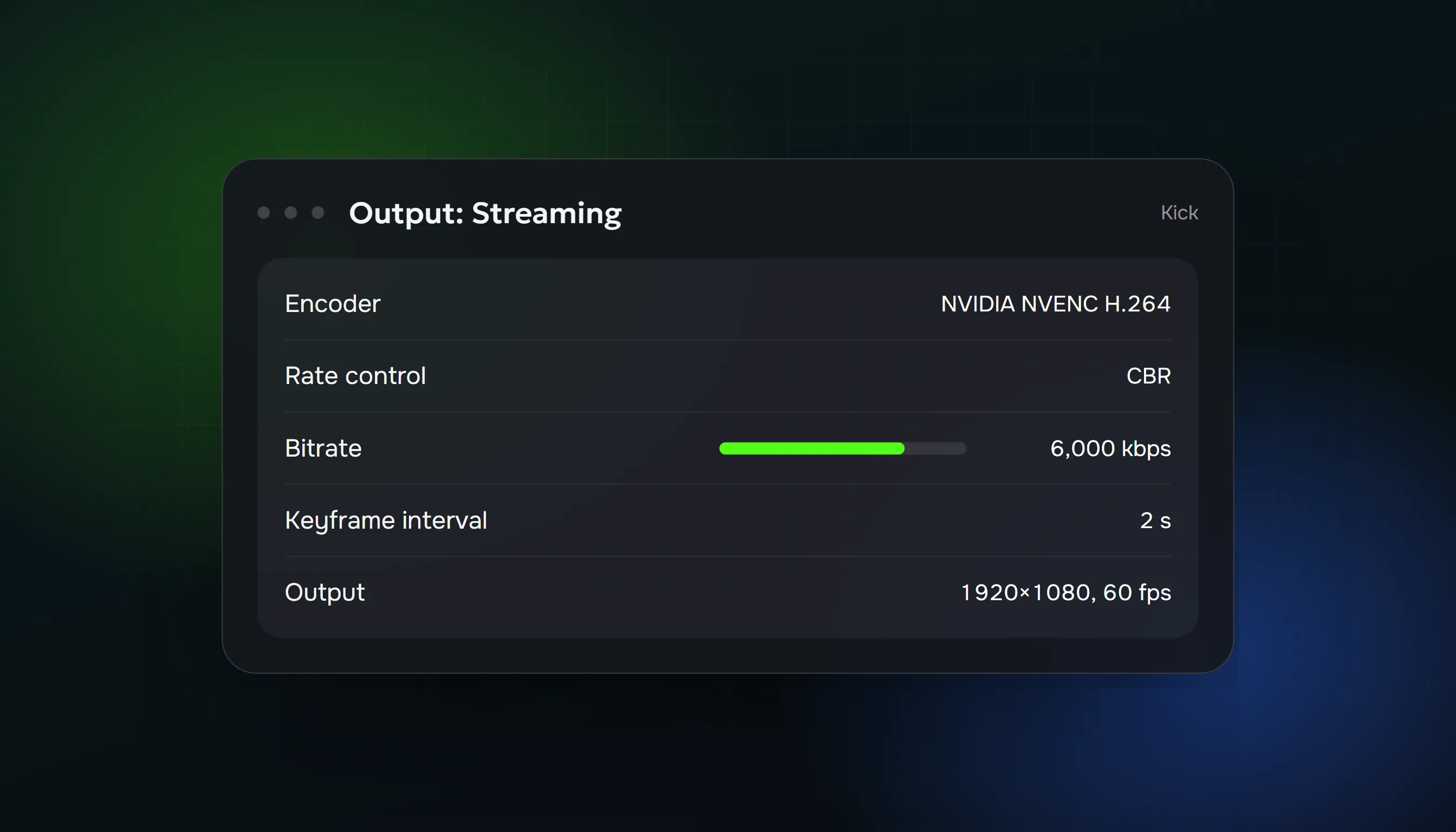
| Encoder | x264 or NVENC |
| Rate Control | CBR |
| Bitrate | 4500-6000 Kbps (1080p) |
| Keyframe Interval | 2 seconds |
| Preset | Quality |
Bitrate Recommendations for Kick
| Resolution | FPS | Bitrate |
|---|---|---|
| 720p | 30 | 2500-3500 Kbps |
| 720p | 60 | 3500-4500 Kbps |
| 1080p | 30 | 4000-5000 Kbps |
| 1080p | 60 | 5000-6500 Kbps |
Audio Settings
| Setting | Value |
|---|---|
| Sample Rate | 48 kHz |
| Channels | Stereo |
| Desktop Audio | Default |
| Mic/Aux | Your microphone |
Step 5: Set Up Your Scenes and Sources
Create a professional-looking stream with proper scene setup.
Essential Scenes
| Scene | Purpose |
|---|---|
| Starting Soon | Pre-stream holding screen |
| Main | Primary streaming layout |
| Just Chatting | Webcam-focused layout |
| BRB | Away from keyboard screen |
| Ending | Stream conclusion |
Adding Sources
Game Capture:
- Click + under Sources
- Select Game Capture
- Choose Capture specific window or Fullscreen
- Select your game
Webcam:
- Click + under Sources
- Select Video Capture Device
- Choose your camera
- Position and resize
Microphone:
- Click + under Sources
- Select Audio Input Capture
- Choose your microphone
Adding Overlays
Kick supports the same overlays as Twitch:
- Create or download overlay images (PNG with transparency)
- Add as Image source in OBS
- Position above your game capture
- Use Browser source for animated overlays
Step 6: Customize Your Kick Channel
Before going live, set up your channel page.
Channel Settings
Navigate to Creator Dashboard → Settings:
| Setting | Recommendation |
|---|---|
| Profile Picture | Clear face/logo (256x256) |
| Banner | Branded image (1920x480) |
| Bio | Who you are, what you stream |
| Social Links | Twitter, Discord, YouTube |
| Stream Title | Descriptive, keyword-rich |
| Category | Select appropriate game/activity |
Channel Panels
Add informational panels below your stream:
- About — Your story and streaming style
- Schedule — When you go live
- Rules — Chat guidelines
- Socials — Links to other platforms
- Donations — If accepting tips
Kick Emotes
Once you gain subscribers, you can upload custom emotes:
- Go to Creator Dashboard → Emotes
- Upload images (112x112, 56x56, 28x28)
- Name your emotes
- Wait for approval
Step 7: Go Live on Kick
Ready to start streaming on Kick? Here's your checklist:
Pre-Stream Checklist
- Identity verification complete
- OBS configured with stream key
- Scenes and sources set up
- Mic and camera tested
- Stream title and category set
- Notifications disabled on PC
- Water bottle nearby
Going Live
- Open OBS
- Select your starting scene
- Click Start Streaming
- Wait 10-15 seconds
- Check Kick dashboard to confirm you're live
- Start engaging with chat
First Stream Tips
- Talk from the start — Don't wait for viewers
- Introduce yourself — New viewers need context
- Engage with chat — Respond to every message
- Stay positive — Energy is contagious
- Have a game plan — Know what you're playing/doing
- Set realistic expectations — Building an audience takes time
Step 8: Understanding Kick Monetization
One of the main reasons to learn how to stream on Kick is the monetization.
Subscription Tiers
| Tier | Price | Your Earnings (95%) |
|---|---|---|
| Tier 1 | $4.99 | $4.74 |
| Tier 2 | $9.99 | $9.49 |
| Tier 3 | $24.99 | $23.74 |
Other Revenue Streams
Kicks (Tips):
- Viewers can send "Kicks" (similar to Twitch bits)
- You keep 100% of tip value
- Minimum payout thresholds apply
Brand Deals:
- Kick's more relaxed guidelines attract certain sponsors
- Negotiate directly with brands
- No platform cut on external sponsorships
Payout Requirements
To receive earnings on Kick:
- Complete identity verification
- Add payout method (PayPal, bank transfer)
- Reach minimum payout threshold ($25)
- Payouts process monthly
Step 9: Grow Your Kick Audience
Going live is just the start. Here's how to build your audience on Kick:
The Discovery Challenge
Like all streaming platforms, Kick sorts streams by viewer count. New streamers with 0-5 viewers face the same discovery problem as on Twitch — you're invisible at the bottom of the category.
Organic Growth Strategies
Cross-platform promotion:
- Post clips on TikTok, YouTube Shorts, Twitter
- Announce streams on social media
- Build a Discord community
- Collaborate with other Kick streamers
Streaming fundamentals:
- Maintain consistent schedule
- Focus on quality audio/video
- Engage authentically with every viewer
- Play games with active Kick communities
Overcoming the Visibility Problem
Many successful Kick streamers use viewer bot services to escape the zero-viewer trap. By appearing higher in category listings, you attract organic viewers who become genuine community members.
ViewerBoss for Kick offers:
- Realistic viewer behavior with AI-generated profiles
- Geographic targeting for authentic appearance
- Natural chat engagement
- No detection risk — 6+ years of proven operation
Our Kick view bot service helps new streamers get discovered and build real communities faster.
Leverage the Twitch to Kick Migration
Many viewers are exploring Kick due to Twitch's strict policies. Position yourself as a welcoming destination for these migrating viewers:
- Create content in categories popular with Twitch migrants
- Be active in Kick communities and chats
- Offer a fresh, less corporate streaming experience
Step 10: Stream on Kick from Mobile
Kick's mobile app lets you stream directly from your phone.
iOS/Android Setup
- Download the Kick app from App Store or Google Play
- Log into your account
- Tap the + button
- Select Go Live
- Add stream title and category
- Choose front or back camera
- Tap Start Stream
Mobile Streaming Tips
- Use a tripod or stable mount
- Stream in landscape mode for better quality
- Ensure strong WiFi or 5G connection
- Use headphones with built-in mic
- Keep phone plugged in (streaming drains battery)
Limitations of Mobile Streaming
- No custom overlays or scenes
- Limited audio mixing
- Lower quality than PC streaming
- Less customization overall
For professional streams, PC + OBS remains the best option for streaming on Kick.
Kick Streaming Rules and Guidelines
Understanding the rules helps you avoid bans.
Kick's Content Policy
Kick is known for more relaxed guidelines, but rules still exist:
Allowed on Kick (that Twitch restricts):
- Gambling content (slots, casino streams)
- More relaxed dress code
- Certain controversial topics
Not allowed on Kick:
- Illegal activity
- Hate speech and harassment
- Underage content
- Copyright infringement
- Violence or self-harm
Avoiding Bans
- Read Kick's Terms of Service thoroughly
- Don't push boundaries unnecessarily
- Moderate your chat actively
- Respond professionally to rule inquiries
- Appeal if you believe a ban is unjustified
Kick vs Twitch: Should You Switch?
Many streamers wonder whether to stream on Kick exclusively or multi-stream.
Reasons to Choose Kick
- 95/5 revenue split — Keep almost all subscription revenue
- Relaxed content policies — More creative freedom
- Growing platform — Easier to stand out
- Less competition — Fewer streamers per category
- Fresh algorithm — New opportunities for discovery
Reasons to Stay on Twitch
- Larger audience — More potential viewers
- Established ecosystem — More third-party tools
- Brand recognition — Viewers know Twitch
- Proven monetization — Bits, subscriptions, ads
The Multi-Streaming Option
Some creators stream to both platforms simultaneously:
- Use restreaming services (Restream.io, etc.)
- Grow audiences on both platforms
- Evaluate which performs better
- Eventually focus on your stronger platform
Note: Check both platforms' rules on simulcasting, as policies may change.
For a deeper comparison, read our Kick vs Twitch guide.
Common Issues When Streaming on Kick
Stream Not Starting
Solutions:
- Verify stream key is correct
- Check RTMP server URL
- Confirm identity verification is complete
- Test internet connection
- Restart OBS
Poor Stream Quality
Solutions:
- Lower bitrate if upload speed is limited
- Reduce output resolution
- Close background applications
- Use hardware encoder (NVENC) if available
- Check for dropped frames in OBS
Chat Not Working
Solutions:
- Refresh the Kick dashboard
- Clear browser cache
- Try a different browser
- Check if you're accidentally muted
Stream Delay
Kick has approximately 10-15 seconds of delay by default. This is normal and helps with:
- Content moderation
- Stream stability
- Copyright detection
FAQ: How to Stream on Kick
Is streaming on Kick free?
Yes. Creating an account, setting up your channel, and going live are completely free. Kick makes money from subscriptions and advertising, not from charging streamers.
Do I need to be verified to stream on Kick?
Yes. Kick requires identity verification before you can stream or monetize. This involves submitting ID and completing facial verification.
What's the minimum age to stream on Kick?
You must be at least 18 years old to create a Kick account and stream.
Can I stream on Kick and Twitch at the same time?
Technically yes, using restreaming services. However, check both platforms' current policies on simulcasting, as terms may change.
How do I get my Kick stream key?
Log into Kick → Creator Dashboard → Settings → Stream Key. Copy the key and paste it into OBS.
What bitrate should I use for Kick?
For 1080p at 60fps, use 5000-6500 Kbps. For 720p at 30fps, 2500-3500 Kbps is sufficient. Adjust based on your upload speed.
How do I get more viewers on Kick?
Combine consistent streaming, cross-platform promotion, networking, and visibility tools like Kick viewer bots to overcome the initial discovery barrier.
When do I get paid on Kick?
Kick processes payouts monthly. You need to complete identity verification, add a payout method, and reach the minimum threshold ($25).
Can I use Streamlabs with Kick?
Yes. Streamlabs supports Kick through custom RTMP settings. The process is similar to OBS configuration.
Does Kick have a mobile app?
Yes. The Kick app (iOS and Android) supports both watching and streaming directly from your phone.
Start Streaming on Kick Today
You now know exactly how to stream on Kick. The platform offers compelling advantages — especially the 95/5 revenue split — that make it worth considering for any streamer.
Quick recap:
- Create and verify your Kick account
- Set up OBS with your stream key
- Configure scenes and sources
- Customize your channel
- Go live and start building your community
The hardest part isn't the technical setup — it's getting discovered. Use every tool available, from cross-platform promotion to ViewerBoss, to overcome the visibility barrier that stops most new streamers.
Try ViewerBoss Free for Kick →
New to streaming entirely? Check out our guide on how to start streaming on Twitch for additional tips that apply to any platform. Or dive deeper into Kick-specific growth with our Kick View Bot Ultimate Guide 2026.
- how to stream on kick
- stream on kick
- kick streaming guide
- kick.com streaming
- kick streamer setup
- kick obs setup
- kick stream key
ViewerBoss Team
Guides on growing a stream on Twitch and Kick