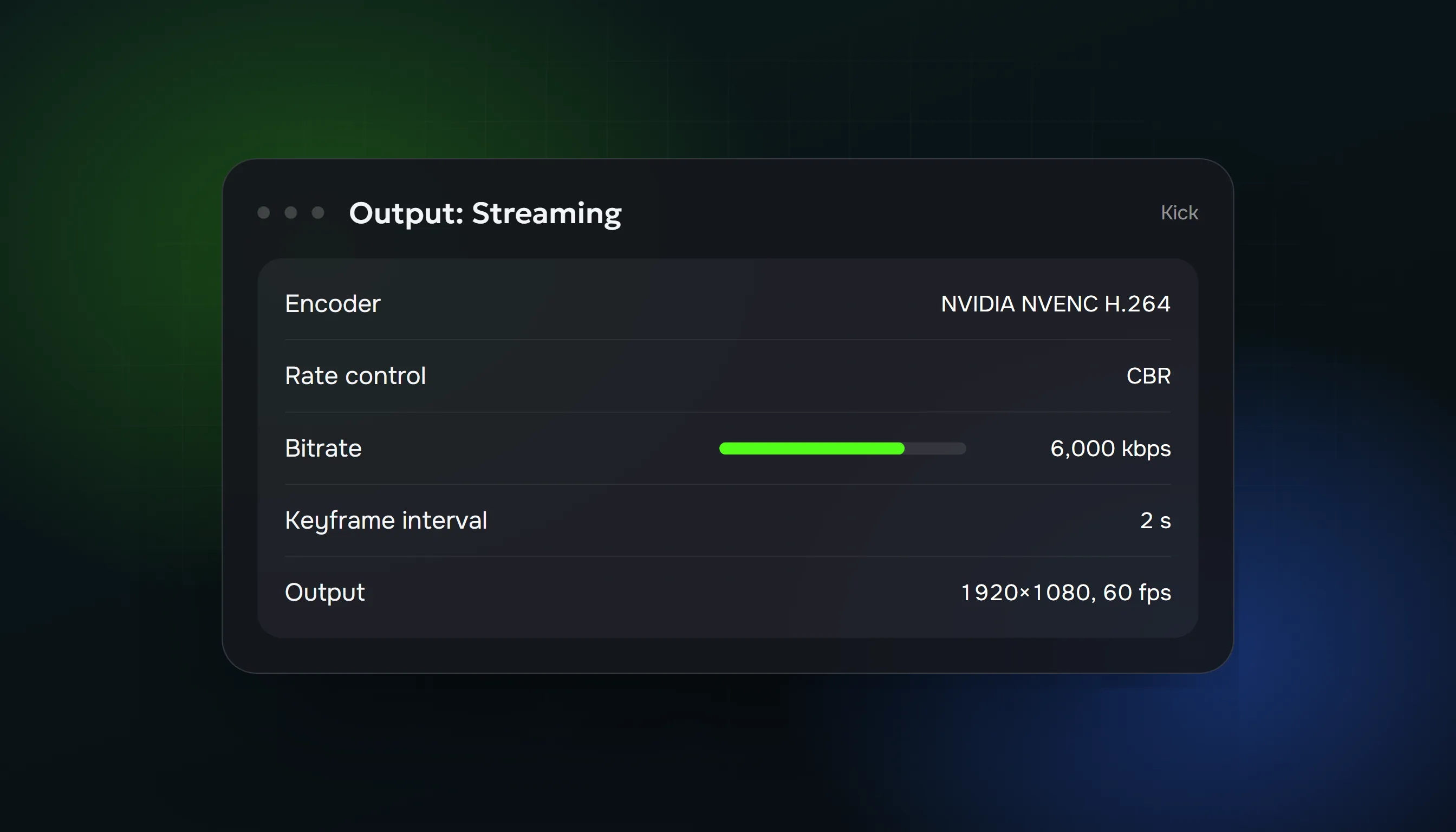
Kick's limits are simple: H.264 video with constant bitrate (CBR), 1,000 to 8,000 kbps, up to 1920x1080 at 60 fps, a 2-second keyframe interval, and stereo audio at up to 48 kHz. Kick doesn't support variable bitrate or H.265/HEVC, so OBS's defaults for some GPUs won't work as they are.
All settings below come from Kick's help center (updated May 2026). Where we add our own suggestion, we say so.
Step 1: connect OBS to Kick
- On Kick, open your Creator Dashboard and go to Stream URL and Key.
- In OBS, open Settings → Stream, set Service to Custom.
- Paste the Stream URL into Server. Kick uses RTMPS, so the URL starts with
rtmps://. - Paste your Stream Key and click Apply.
Never show your stream key on stream. If it leaks, reset it on the same dashboard page.
Kick also supports Streamlabs Desktop, XSplit and MELD. The encoder settings below work the same way in each.
Step 2: encoder settings
Open Settings → Output, set Output Mode to Advanced, and pick your encoder on the Streaming tab. Use a hardware encoder if you have one: it leaves your CPU free for the game.
NVIDIA (NVENC H.264)
| Setting | Kick's recommendation |
|---|---|
| Rate control | CBR |
| Bitrate | 1,000 to 8,000 kbps |
| Keyframe interval | 2 s |
| Preset | P6: Slower (Better Quality) |
| Tuning | Ultra Low Latency |
AMD (AMD HW H.264)
| Setting | Kick's recommendation |
|---|---|
| Rate control | CBR |
| Bitrate | 1,000 to 8,000 kbps |
| Keyframe interval | 2 s |
| Preset | Same options as NVIDIA: a slower preset for quality |
CPU (x264)
| Setting | Kick's recommendation |
|---|---|
| Rate control | CBR |
| Bitrate | 1,000 to 8,000 kbps |
| Keyframe interval | 2 s |
| CPU usage preset | veryfast |
| Profile | main |
| Tune | zerolatency |
Make sure you pick the H.264 version of your GPU encoder, not HEVC or AV1. Kick only accepts H.264.
Step 3: pick a bitrate from your upload speed
Kick's rule: your upload speed should be at least twice your stream's bitrate. At 6,000 kbps you need at least 12 Mbps of upload. Run a speed test at the time of day you stream, not in the morning.
Our suggested settings, based on that rule and Kick's limits:
| Upload speed | Bitrate | Resolution and frame rate |
|---|---|---|
| 5 to 8 Mbps | 2,500 to 3,500 kbps | 720p, 30 fps |
| 8 to 12 Mbps | 4,000 to 5,000 kbps | 720p 60 fps or 1080p 30 fps |
| 12 to 16 Mbps | 6,000 kbps | 1080p, 60 fps |
| 16 Mbps or more | 8,000 kbps (Kick's maximum) | 1080p, 60 fps |
Fast games such as shooters need more bitrate to look sharp than Just Chatting or slow games. If a fast game looks blocky at 1080p, drop to 720p at the same bitrate.
Step 4: video and audio settings
Settings → Video
- Base (canvas) resolution: your monitor's resolution
- Output (scaled) resolution: 1920x1080 or 1280x720 (Kick's maximum is 1920x1080)
- Downscale filter: Lanczos (our suggestion; Bicubic if your PC struggles)
- FPS: 60 or 30 (Kick's maximum is 60)
Settings → Audio
- Sample rate: 48 kHz (Kick's maximum)
- Channels: Stereo
- Audio bitrate (in Output → Audio): 160 kbps is a common choice. Kick doesn't specify one.
Kick's beginner checklist puts it plainly: your audio matters more than your video quality. A clear microphone at 720p beats a muffled one at 1080p.
Fixing lag, buffering and dropped frames
Kick's help center separates the problems by cause:
- Dropped frames (OBS shows them at the bottom): your encoder produces video faster than your internet can send it. Lower the bitrate, or use wired Ethernet instead of Wi-Fi.
- Encoding overloaded / high CPU: switch to a faster preset. Kick suggests superfast for x264 and P3: Fast for NVIDIA and AMD.
- Viewers see buffering but OBS looks fine: usually upload speed at peak hours. Test again in the evening and lower the bitrate to half your measured upload.
Kick's help center also points out that a 720p 30 fps stream looks better to viewers than a stuttering 1080p 60 fps one.
Quick checklist
- Server and stream key from Kick's Creator Dashboard
- Encoder: NVENC H.264, AMD HW H.264 or x264 (no HEVC/AV1)
- Rate control CBR, keyframe interval 2 s
- Bitrate at most half your upload speed, never above 8,000 kbps
- Output 1080p or 720p, 60 or 30 fps
- Audio stereo, 48 kHz
- Wired Ethernet
Once your stream looks good, read how to get viewers on Kick for the next step. If you're working toward Kick's monetization thresholds, see the Kick Partner Program requirements.
FAQ
What is the best bitrate for Kick?
6,000 kbps at 1080p 60 fps if your upload speed is at least 12 Mbps. Kick's maximum is 8,000 kbps.
Can I stream to Kick in 1440p or 4K?
No. Kick's maximum resolution is 1920x1080.
Does Kick support H.265 / HEVC or AV1?
No. Kick accepts H.264 only, with constant bitrate.
What keyframe interval does Kick use?
2 seconds, for every encoder.
Why is my Kick stream lagging when my game runs fine?
Usually dropped frames from too high a bitrate for your upload, or Wi-Fi. Lower the bitrate and use Ethernet.
Sources: Kick Help Center: How to stream on KICK.com (updated 22 May 2026); Kick Help Center: Why is my stream lagging or buffering on KICK? (updated 6 May 2026); Kick Help Center: Getting started as a Streamer (updated 6 May 2026).
ViewerBoss Team
Guides on growing a stream on Twitch and Kick